When you print multiple copies of a document, you see a box named as collate. There are two options: Either you can select or leave it as it is. This setting controls the sequence of printed copies. With the collate setting on, you can get printed copies in a complete set form that do not require ordering anymore, while the uncollated setting will give you stacks that require ordering. You should know what 'collate' means when printing because a small move can change the printing result. A wrong choice, and you will have pages that are of no use.
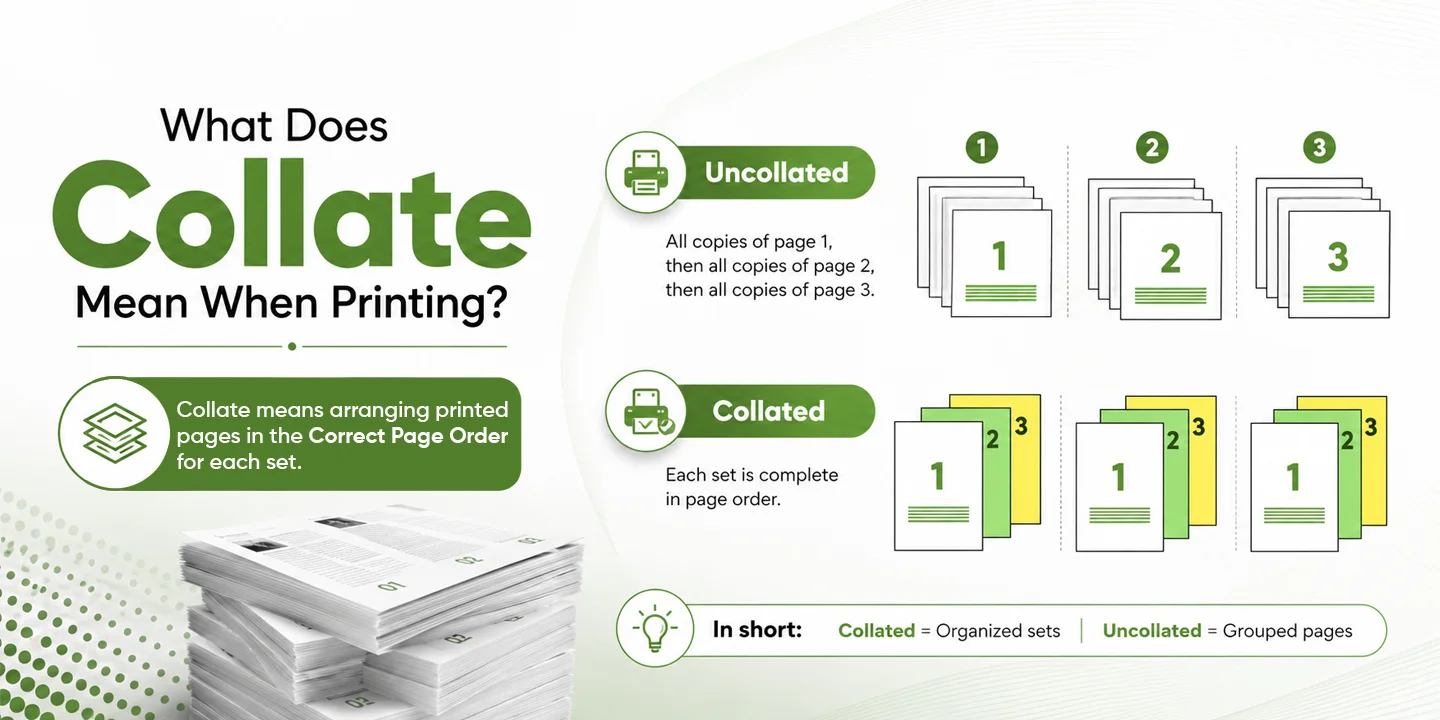
'Collate' is used when you want to print multiple copies of a multipage document into a set with the correct sequence. Let’s suppose you want to print four copies and the document has 3 pages. With the Collate setting selected, the printed copies will come out as 1-2-3 four times. If you turn off Collate, these copies will come out as page 1 four times, then page 2 four times, then page 3 four times. In the end, you have to arrange the document manually. Collate saves your time and effort, making the printing process easy and hassle-free.
In this guide, we will help you decide when collate is useful and when it is not while printing packaging and other professional printings.
What Does Collate Mean?
Collate is a Latin-original word that means to collect, gather, arrange, or sequence. In printing it is specifically referred to as organizing printed copies into a set, making it easy to form a complete document. It is readable and ready to pin.
However, there are two things that you should know beforehand. Collate is only applicable:
-
When the document has more than one page
-
When you want to print more than one copy
In collated printing, the printer will print one copy of the whole document, and then it will print a second, and the process goes on until it meets your command. The collate setting does not have any drawbacks. Your page design, format, orientation, sicolor,olor and printing quality won’t be affected. Collate setting is only used to keep the document page sequence in printed form without putting in extra effort. Pages will come out in sets, and meanwhile you color, other tasks.
Why does Collated Printing matter?
Collated printing settings save a lot of time and hassle to organize the document. You don’t have to make it a complete page-by-page. It makes the work easier and error-free. There will be fewer chances of missing pages, duplicate pages, or wrong sequence while binding the document. After printing, the pages are ready to get stapled, pinned, bound, or folded. You can use them or distribute them right color other any additional effort.
Organizing a document in the correct sequence is important for the reader. Suppose you have to give a presentation, and while presenting you find some pages are missing. It will turn the whole idea of the proposal and cause embarrassment and unprofessionalism. With automatic collated printing, you can reduce the page order errors.
What Is the Difference Between Collated and Uncollated Printing?
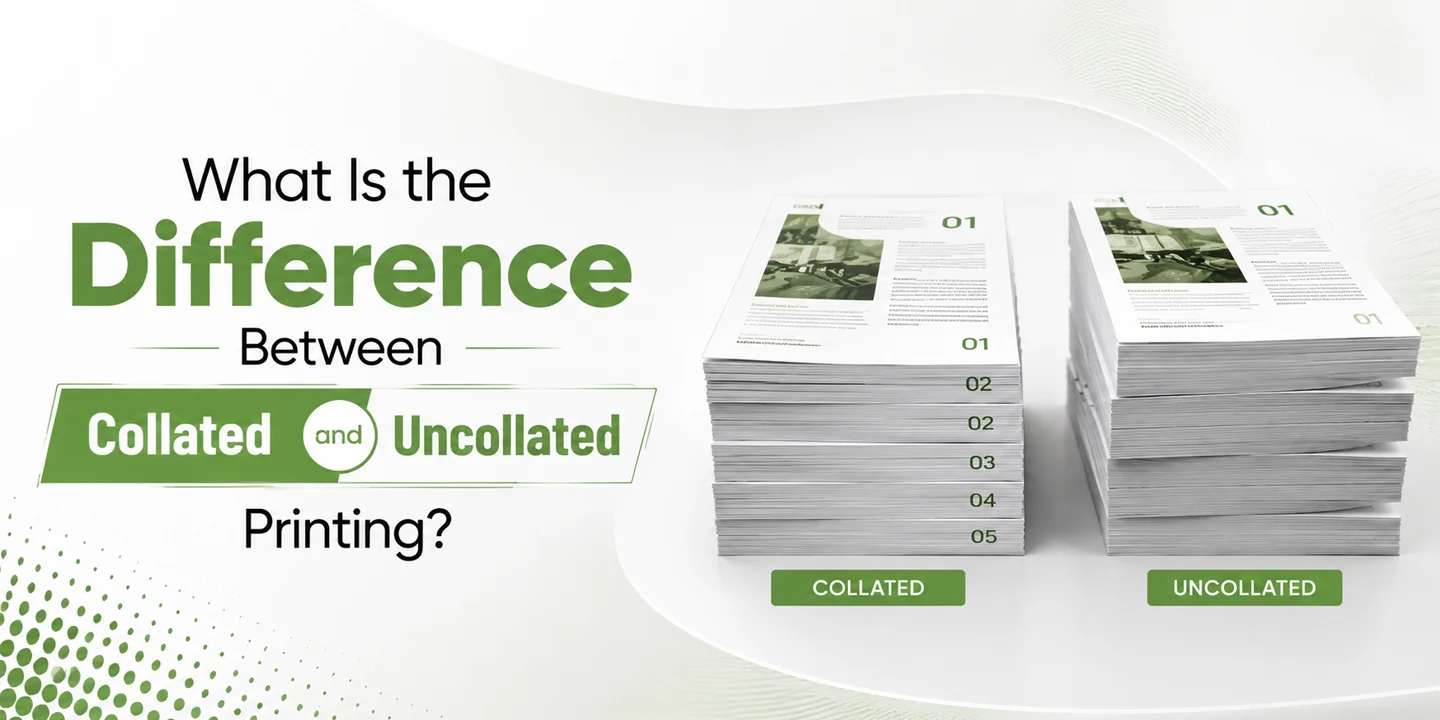
Collated and uncollated printing has a main difference in outcome. Both settings use the same document, quantity, ink, paper, and quality. The only difference is how the printed copies are organized. Let’s see the comparison between these two settings for better understanding.
Collated Printing
In collated printing, you will get a complete set of documents before printing the next copy. You want three copies of a document that has four pages. With collated settings the output will be 1-2-3-4, 1-2-3-4, and 1-2-3-4. You have got 3 sets, each having four pages, making a complete document set. Now they are ready to read, fold, bind, and distribute.
Uncollated Printing
In an uncollated setting, all copies of one page will be printed before going to the next page. Take the previous example. You have a four-page document and need three copies. If you choose the uncollated setting, the output will be 1-1-1, 2-2-2, 3-3-3, and 4-4-4. It means you will have a stack of every page separately. Now you have to manually arrange the pages to make a complete document. Uncollated printing is useful if you need individual sheets.
| Feature | Collated Printing | Uncollated Printing |
|---|---|---|
|
Output |
Complete document sets |
Separate stacks of identical pages |
|
Sequence |
1-2-3, 1-2-3 |
1-1, 2-2, 3-3 |
|
Best for |
Manuals, catalogs, reports, presentations |
Forms, flyers, worksheets, separate inserts |
|
Manual sorting |
Usually unnecessary |
Required if complete sets are needed |
|
Next step |
Binding, packing, or distribution |
Separate use or later assembly |
Manual Collation vs. Automatic Collation
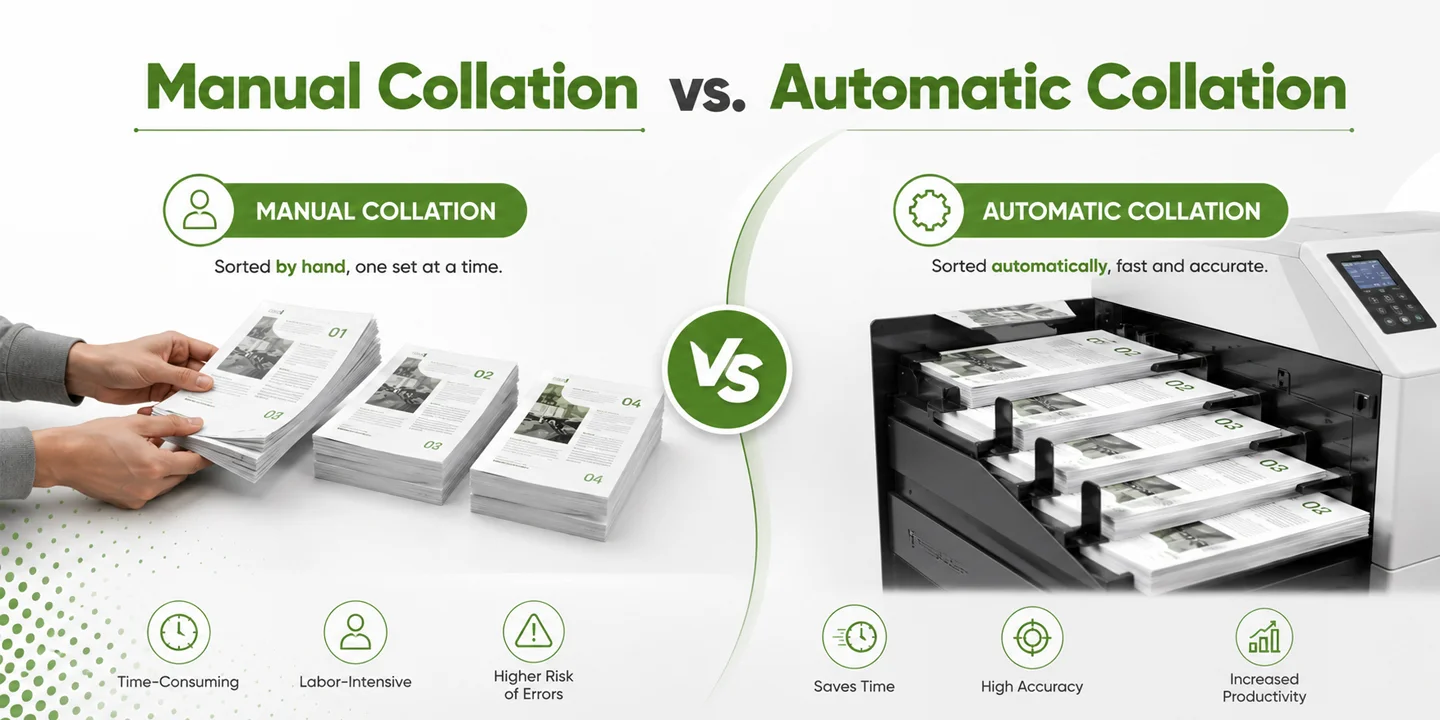
Collation can be done manually or by printing software or equipment. In both methods you will get printed, ordered copies of the document. However, both of these methods have different speeds, labor, consistency, and applicability for larger quantities.
Manual Collation
Manual collation has to be done by hand after the copies are printed. You have to assign the task to a worker. He will take one sheet from each stack to make a complete document set in the required order. It is practical for small-scale printing. However, as the quantity increases, manual sorting becomes difficult. It becomes time-consuming, and there will be more chances for errors like missing or duplicated sheets.
Automatic Collation
Automatic collation is done by software, the printer, or commercial finishing equipment. In automatic collation the output will be in the form of complete sets. You don’t need someone to sort the sheets to make a document. Automatic collation is suitable for repeated jobs, booklets, catalogs, manuals, and larger quantities. There are some production machines that can also offset, fold, or staple the completed sets.
| Factor | Manual Collation | Automatic Collation |
|---|---|---|
| Best quantity | Very small | Medium and large repeat jobs |
| Labor | Pages are organized manually | Pages ordered by software or equipment |
| Speed | Slower as quantity increases | Faster for repeated document sets |
| Main risk | Missing or duplicated sheets | Repeats errors already in the source file |
Where Collated Printing Earns Its Keep
If you need copies of multipage documents in a fixed order, collated printing is best. Usually it is used for business reports, proposals, presentations, product catalogs, training documents, instruction manuals, warranty information, safety guides, booklets, and magazines.
Reports and Presentations
If you are printing the cover page, company overview, terms, recommendations, and pricing, then always choose collated printing. It helps you to give clients a complete set having all the required details. With collated printing you don’t have to organize your reports and presentations. They are ready to use without any need of sorting.
Catalogs, Manuals, and Guides
Product catalogs have a proper sequence of all the content. It is preferred to use collated settings for product catalogs. Instruction manuals have to be in a specific sequence to be followed and get desired results. If there’s a missing page, the instruction manual will be of no use. Thus, choose hassle-free work, and print instruction manuals with collated settings. Businesses that provide product manuals, catalogs, or brochures can also use custom booklet boxes to protect and present the finished materials.
When Separate Stacks Work Better
When separate pages are needed, the unollated setting is selected. Uncollated setting is more suitable for the printing of application forms, flyers, worksheets, coupons, labels, posters, product specification sheets, and event handouts.
Collation has no practical effect on a one-page document because there is no page sequence to preserve. Ten copies of a single-page flyer remain ten identical sheets regardless of whether the Collate box is selected.
Not Every Bound Product Is Collated
Collation and binding are two different things. Collation is ordering the pages in sequence, while binding means attaching the sheets together. It is not necessary to bind the collated document. On the other hand, binding does not require any collation; you can bind the pages without collation. Take a notepad as an example: its sheets are joined at one edge, but every sheet carries the same design, so there is no numbered sequence to assemble.
Collate, Duplex, or Staple?
Collation, duplex, and staple are all different options and have different functionality. These options appear in the same window; however, they are completely different. With duplex printing, you can choose whether you want one or both sides of a sheet printed.
Staple is binding the printed pages together using staples, glue, wire, or pins. Imposition controls how pages are positioned on a larger press sheet before folding and trimming.
For any given document, you may use all of the above processes. For instance, you have an 8-page document. You may print it double-sided with the use of the duplex feature, print out the complete set with the collated setting, and then staple the pages together. Collate does not mean that the document will be printed double-sided or that it will be bound. These functions are separate.
How to Turn On the Collate Setting
To turn on collate settings, follow this guide.
Open the multipage document, select File, and then click Print. Choose the correct printer, enter the number of copies (more than one), and now look for the collate check box. You can also look for a page order icon. A collate setting icon displays 1-2-3, 1-2-3, while an uncollated setting icon displays 1-1, 2-2, and 3-3. Now confirm your page range, duplex setting, orientation, and page size. Preview the document before starting the printing.
Collate settings can have different locations in different applications, OS, printer drivers, and devices. You can find it under Copies, Printer Properties, Preferences, Finishing, or Advanced Settings. If you are unable to find the option, first check that your file has multiple pages or you have selected copies of more than one.
If your document has only one page or the printed copies quantity is just one, you won’t find a collated option, as it does not work with both of these.
Where Collation Fits in Product Packaging
Collation setting is used for internal printing in the packaging production industry. Collation works well for printing materials that go inside custom product boxes. What you will find inside are user manuals, assembly guides, warranty booklets, safety info, care information, or multilingual documents. With collation you will get a complete document ready for folding, binding, and insertion.
For single cards or pages, you do not need collation. However, for multipage packaging inserts, you have to use collation. Before printing, you should confirm the document version, language, product model, and quantity before placing the material inside retail boxes. Correct page order does not replace version control or final quality inspection.
Does One Copy Need Collation?
No, there is no need for collation when printing a single copy. You just have one page to print, and that does not need any sequence or organization. If you have a multipage file, then you should choose the collate setting because it is useful to save time and labor.
Does Collated Printing Cost More?
No, collated printing does not cost more. Collation printing does not require an extra number of pages or ink. If you have a ten-page document and you want 100 printed copies. The printer will give you 1000 printed copies whether you use a collated setting or an uncollated setting. A commercial printer may charge more when they have to do jobs that include manual sorting, different components, specialty finishing, or complex quality checks; hence, the price varies by job.
Check One Set Before the Full Run
Before printing large quantities, always inspect carefully one complete step. If you want to get error-free printing results, then before giving the command, carefully check a few things. Check the page arrangement, total page number, if there are any missing or duplicate pages, blank pages, page orientation, page size, margins, page border, duplex edge, image quality, and document version. A printer can collate an incorrect source file perfectly, which is why proofing remains essential.
One Small Checkbox, Several Business Benefits
Collated document printing is not just an additional step. It helps keep the workflow running and saves time and effort.
-
Spend Less Time Sorting by Hand: If you don’t choose a collated setting, you have to sort the documents manually. It will take more effort and time. The work will be slow and repetitive.
-
Keep Pages in Their Intended Sequence: Without any interruption, you will have complete sets. There will be fewer chances for any error. Your customers will get correctly ordered documents.
-
Move Straight Into Finishing: As soon as the printing ends, you are ready to go. You will have printed document sets read to staple, fold, pin, publish, or distribute.
-
Present a More Professional Result: Imagine you have to provide a product catalog or instruction manual to your customers. How unprofessional and embarrassing it will be for a brand if the document has missing pages. To prevent such situations, always prefer collated printing documents.
-
Simplify Quantity Checks: Collated setting makes quantity checks easier. It is easy to confirm the quantity of complete printed sets.
Frequently Asked Questions About Collate Printing
What does collate mean when printing?
Collating in printing means printing the copies of a document as a complete set. It follows the same order of the document and print copies in a set form.
What does collate mean on a printer?
Collate on a printer is a setting used to command the printer for a specific sequence. Collate setting enables the printer to print copies in sets rather than copying single pages.
What is an example of collated printing?
Suppose you want to print a document that has 3 pages, and you want to print 3 copies. The printer with the collated setting prints as 1-2-3 a complete set. It will repeat the same process until you get 3 complete sets.
What does uncollated mean when printing?
Uncollated means printing without a complete set. Suppose you want to print a document with 4 pages and you need 4 copies. So it will give you 4 batches: one batch with page 1, a second batch with page 2, a third batch with page 3, and a fourth batch with page 4. You have to manually make the sets.
Should I collate when printing multiple copies?
If you are printing a document that needs a complete set of forms, then the best option is choosing collated printing. It will save you time and effort.
Does collate mean double-sided?
No, "collated" does not mean double-sided. Collation just controls the sequence and organization of pages.
Does collate mean staple?
No, collate does not mean staple. Stapling is another process that is done.
Is collated or uncollated printing better?
Collated printing is better for manuals, reports, catalogs, presentations, and other documents that must be read in sequence. Uncollated printing is better for forms, flyers, worksheets, and independent pages.
Choose The Right Page Order
So, what does collate mean printing multiple copies? It simply means printing a document in one complete set. It follows the sequence as 1-2-3, 1-2-3, while uncollated printing follows 1-1, 2-2, and 3-3.
Collated printing is best for reports, presentations, product catalogs, warranty booklets, and instructional manuals. For forms, flyers, labels, and worksheets, the best option is uncollated printing.